

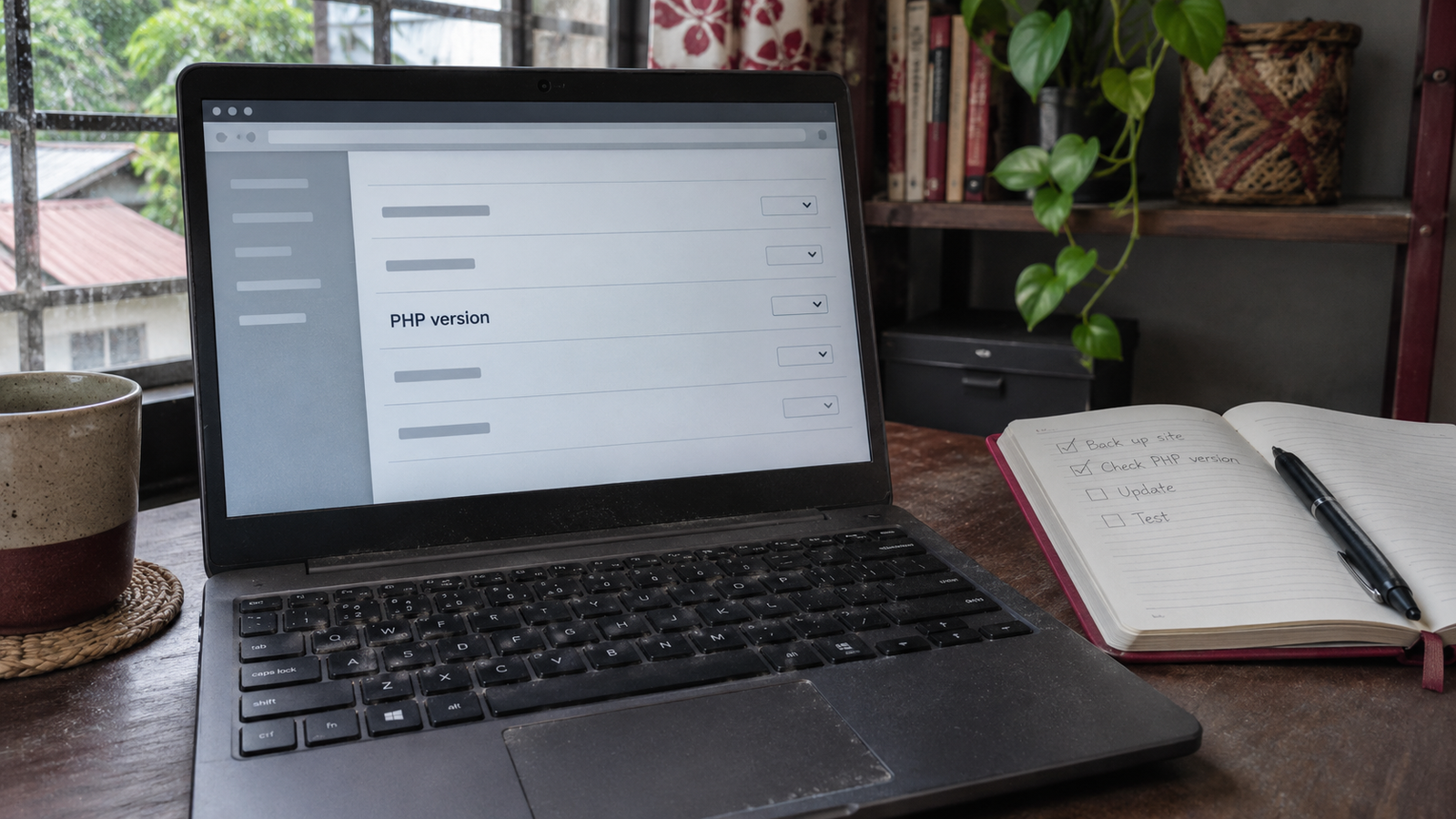
Imagine running through your website before a launch. The homepage loads, the contact form sends a message, and a test order reaches checkout. WordPress says it’s up to date. Then your host sends an email asking you to review your PHP version.
WordPress and PHP follow separate update schedules. Your site can pass every test a visitor would run while its server still uses a PHP version that no longer receives security fixes.
The BBC’s reporting on serious PHP security flaws gives WordPress owners a reason to check a detail that rarely comes up during a redesign or a routine content update.
One website, two update schedules
PHP is the language WordPress uses to do much of its work on the server. When someone opens a blog post, WordPress can use PHP to retrieve the post from the database and assemble the page. The visitor sees the finished article. The work that produced it happens behind the scenes.
WordPress core, plugins, and themes have their own updates. Your hosting provider or server administrator usually manages the PHP runtime they depend on. A plugin update leaves the server’s PHP version as it was.
Check what your site actually runs
In the WordPress dashboard, go to Tools → Site Health → Info → Server and look for PHP version. Write down the full version number. If you manage a live site and a staging copy, check each one separately. They can run on different versions. WordPress Site Health documentation
Compare the version with the PHP project’s support table. It shows which release branches still receive fixes and when support ends. A supported branch can still have an older patch installed, so ask your host about the exact version and security updates it provides. PHP Supported Versions
If someone else manages your hosting, send them the version you found and ask who applies PHP security updates and when the last one was applied.
Test the clicks that matter
A PHP upgrade can affect a plugin, theme, or custom integration in ways you won’t see on the homepage. A store can display products while checkout fails. A contact form can show a success message while the email never arrives.
Before switching PHP on the live site, confirm you have a recent, restorable backup and test the new version on staging. Choose checks that reflect how people use your site.
- Portfolio or blog. Open a published page, sign in, and upload a test image.
- Service business. Submit the contact form and confirm the message reaches the right inbox.
- Online shop. Test the cart, checkout, and order confirmation with a test payment method.
Ask your host how to switch back if a critical feature fails. Once the live upgrade is complete, repeat the checks that are safe to run in production.
Give PHP a place on your maintenance calendar
A website handover usually tells the owner how to edit a page or add a product. It should also answer three questions about PHP. What version is running? Who maintains it? When should we check it again?
Put those answers next to the rest of your site maintenance notes. The next time WordPress says everything is up to date, you’ll know what that check covers and where to look for the rest.